Search
Using CommView for WiFi and TamoGraph on a Mac
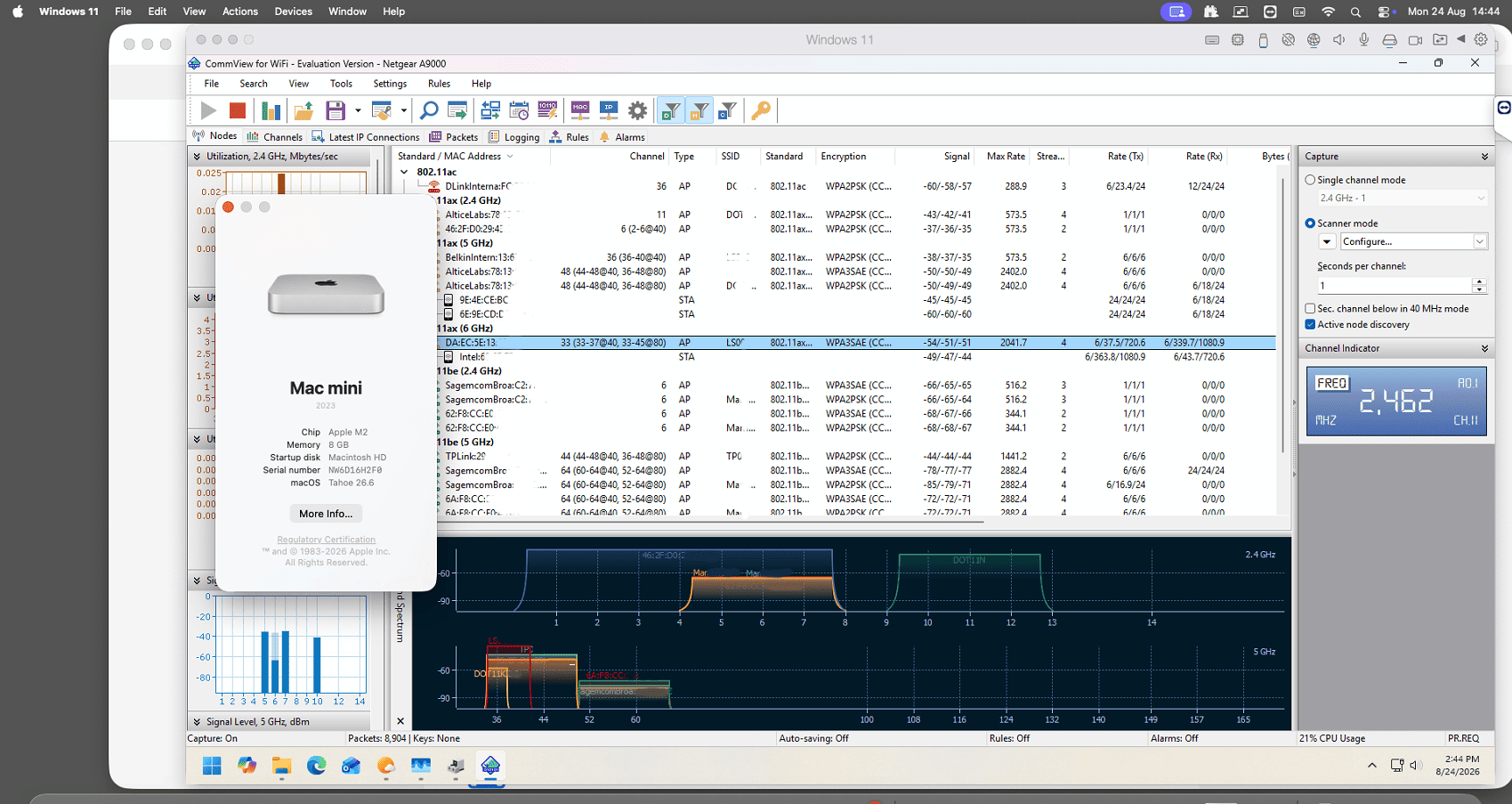
Good news for Mac users: CommView for WiFi and TamoGraph Site Survey can be used on most current Mac computers, including Intel-based models and Macs with Apple silicon.
To run the Windows applications, install Windows 11 in a virtual machine using:
- VMware Fusion
- Parallels Desktop for Mac
- VirtualBox
The same general setup applies to both applications.
Note that TamoGraph Site Survey is also available as a native macOS application. If you use TamoGraph, you may prefer to install the macOS version directly without Windows or virtualization.
Supported Mac Processors and Windows Versions
Both major Mac processor architectures are supported:
- On an Intel-based Mac, use Windows 11 x64.
- On a Mac with Apple silicon, including M1 through M5 processors, use Windows 11 Arm.
This applies to VMware Fusion, Parallels Desktop for Mac, and VirtualBox. Be sure to use a current version of the virtualization software that supports your Mac processor and installed macOS version.
Windows 11 Arm can run x86 and x64 applications using its built-in emulation. The applications therefore run in emulation mode on Apple-silicon Macs, while their Arm64 packet capture drivers run natively in Windows 11 Arm.
Some versions of Parallels Desktop provide an experimental option for running Intel-based guest operating systems on Apple-silicon Macs. However, USB devices are not supported in that mode, so it cannot be used with the USB Wi-Fi adapters required for packet capture. Use Windows 11 Arm instead.
Compatible Wi-Fi Adapters
To capture wireless packets or perform passive surveys, you need a compatible USB Wi-Fi adapter.
When running the applications in a Windows virtual machine, you can use USB adapters only. The Mac’s built-in Wi-Fi adapter cannot be used for packet capture by the virtual machine.
Current versions support compatible adapters based on:
- 802.11ax, including Wi-Fi 6 and Wi-Fi 6E adapters
- 802.11be, including Wi-Fi 7 adapters
Older Wi-Fi adapter models are not supported.
This restriction applies to the adapter used for packet capture, not to the Wi-Fi standards that can be analyzed. A compatible adapter can also capture supported traffic from Wi-Fi 5 and earlier-generation networks.
Before purchasing or connecting an adapter, check the applicable compatibility list:
We strongly recommend choosing an adapter marked Recommended.
Virtualization Software Configuration
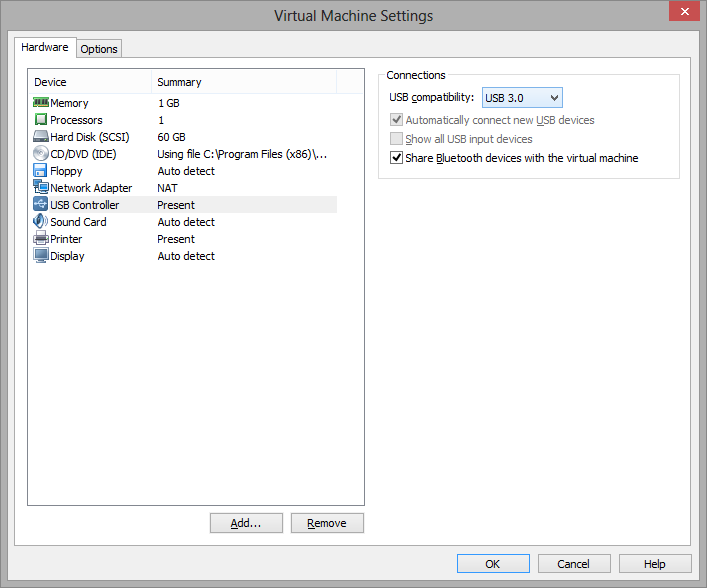
Current versions of VMware Fusion, Parallels Desktop for Mac, and VirtualBox support USB 3.0 devices.
Where the virtualization software allows you to select the virtual USB controller, configure the virtual machine to use USB 3.0, also known as xHCI. Use this setting even if the Wi-Fi adapter itself has a USB 2.0 interface.
An xHCI virtual controller is recommended because it can reduce communication overhead and channel-switching delays between the USB Wi-Fi adapter and the guest operating system. Frequent channel switching is an important part of wireless packet capture, and using USB 2.0 emulation may reduce capture performance.
The exact setting and its location depend on the virtualization software version. Refer to its documentation for instructions on enabling USB support and attaching USB devices directly to a Windows virtual machine.
Connecting the Wi-Fi Adapter
Connect a compatible USB Wi-Fi adapter to your Mac.
Next, configure the virtualization software to connect the adapter to the Windows virtual machine rather than to macOS. Most virtualization applications display a prompt asking whether a newly connected USB device should be assigned to the Mac or to the virtual machine.
Select the Windows virtual machine. The adapter must be controlled by the guest operating system while the application is using it.
If no prompt appears, open the USB or external-device menu in the virtualization software and manually connect the adapter to the Windows virtual machine.
Installing the Packet Capture Driver
After the virtual machine takes control of the adapter, Windows will detect a new USB device.
Start CommView for WiFi or TamoGraph and select:
Help > Driver Installation Guide
Follow the instructions to install the TamoSoft packet capture driver for the adapter.
After installation, restart the application. The adapter should then become available for wireless packet capture or passive surveys.